Why Excel breaks barcode numbers, and how to keep every digit
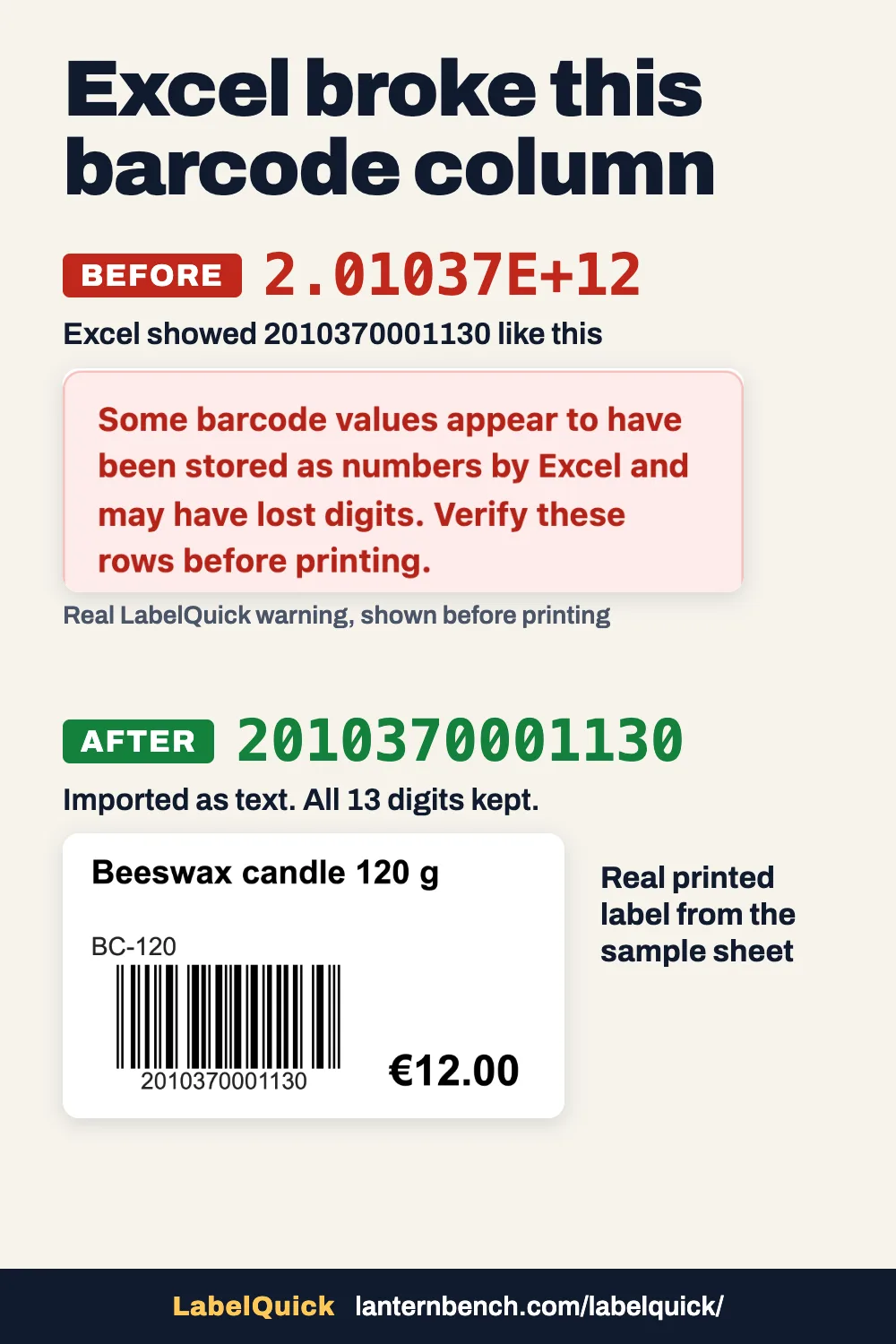
Excel drops the first zero of 012345678905 and shows 2010370001130 as 2.01037E+12. Both happen because Excel reads a barcode as a number. The fixes below work in Excel, Google Sheets and LibreOffice, with no extra software.
What Excel does to a barcode column
- The leading zero disappears. Excel reads 012345678905 as a number and keeps 12345678905, 11 digits instead of 12. This happens when you open a CSV file with a double click, or type the code into a cell with the General format.
- Long codes show as 2.01037E+12. The General format shows any number of 12 or more digits in scientific notation (Microsoft: number formats). Until you save, the cell still holds every digit.
- Saving as CSV makes the damage permanent. A CSV file keeps what Excel shows, so the file now holds 2.01037E+12 instead of 2010370001130. Seven digits are gone.
- Codes over 15 digits change at once. Excel keeps 15 significant digits and turns the rest into zeros (Microsoft: leading zeros and large numbers). EAN-13 and UPC-A codes fit, but some longer Code 128 codes do not.
Open the file without losing digits
- Excel, existing CSV file. Open a blank workbook and choose Data, then From Text/CSV. Pick the file, set Data Type Detection to Do not detect data types and choose Load. Every column arrives as text, with all its digits.
- Excel, new sheet. Select the barcode column, open Format Cells and choose Text, then type or paste the codes. Format the column first: a zero lost before that does not come back.
- Google Sheets. Select the column and choose Format, Number, Plain text before you paste. When you import a CSV with File, Import, untick Convert text to numbers, dates, and formulas.
- LibreOffice Calc. The Text Import window opens with the CSV file. Click the barcode column, set Column type to Text, then choose OK.
If the file already shows E+12
- First check where the E+12 comes from. In a workbook that was never saved as CSV, the cell still holds every digit: select the column, choose Format Cells, Number with 0 decimal places, and the full code comes back. In a CSV file that already contains 2.01037E+12, the digits are gone: the same step shows 2010370000000, which is a different barcode.
- Export the list again from its source: your till or shop system, or the supplier's file. Then open it with one of the methods above.
- Missing leading zeros can be added back, because the length is fixed. For 12 digit UPC-A codes in column A,
=TEXT(A2,"000000000000")turns 12345678905 into 012345678905. For EAN-13, use 13 zeros.
Check before you print
- Count the digits. An EAN-13 code has 13, a UPC-A code has 12.
- Look for E+, a comma or a dot in the barcode column. A barcode never contains them.
- Check the last digit. It is a check digit computed from the others. If it does not match, a digit has changed, and a scanner may refuse the label even though it prints.
Test a file with LabelQuick
LabelQuick is the free label extension made by Lanternbench, the studio that publishes this page. It reads your CSV or Excel file on your computer, warns about barcodes stored as 2.01037E+12 and about wrong check digits, and outlines the damaged labels in red before you print. The file is not uploaded.
Install the free extension for Chrome, Edge or Firefox.
When the file is right, print the labels with the price label guide.